
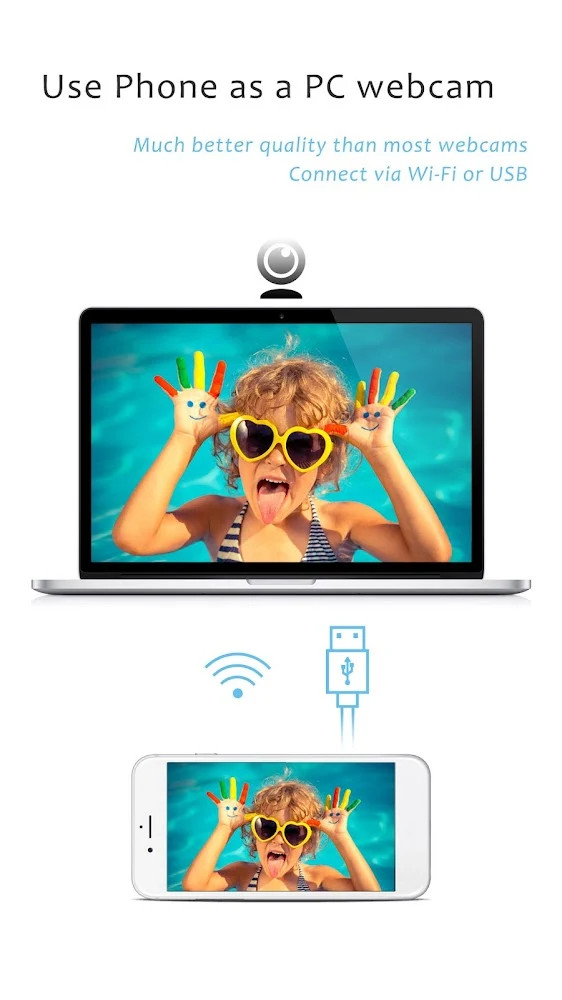
iVCam Webcam sends the picture from an Android phone’s camera to a Windows computer, where video call and recording apps can use it as a webcam. For an online piano lesson, a phone on a stand can show your hands while the laptop stays nearby so you can see and talk to the teacher.
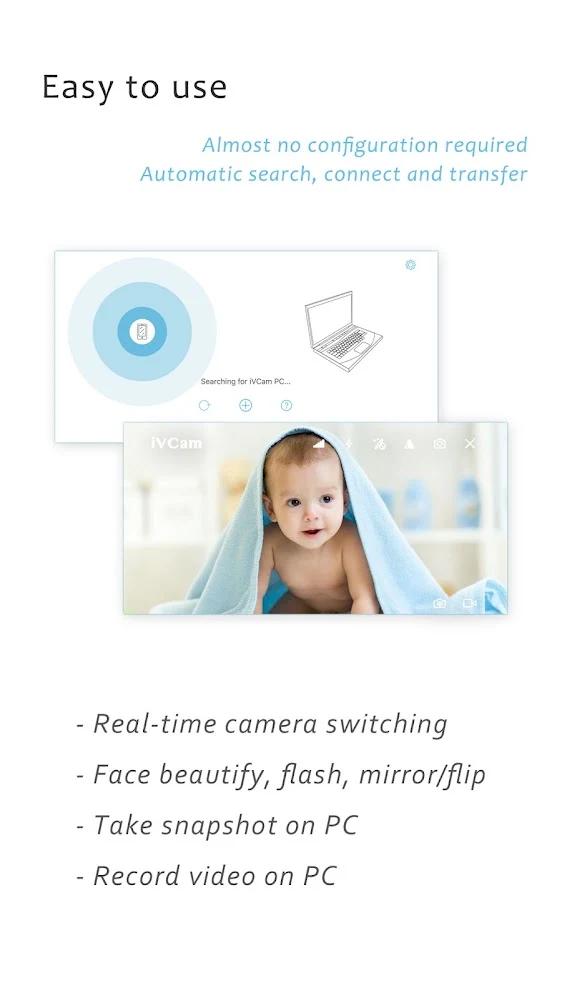
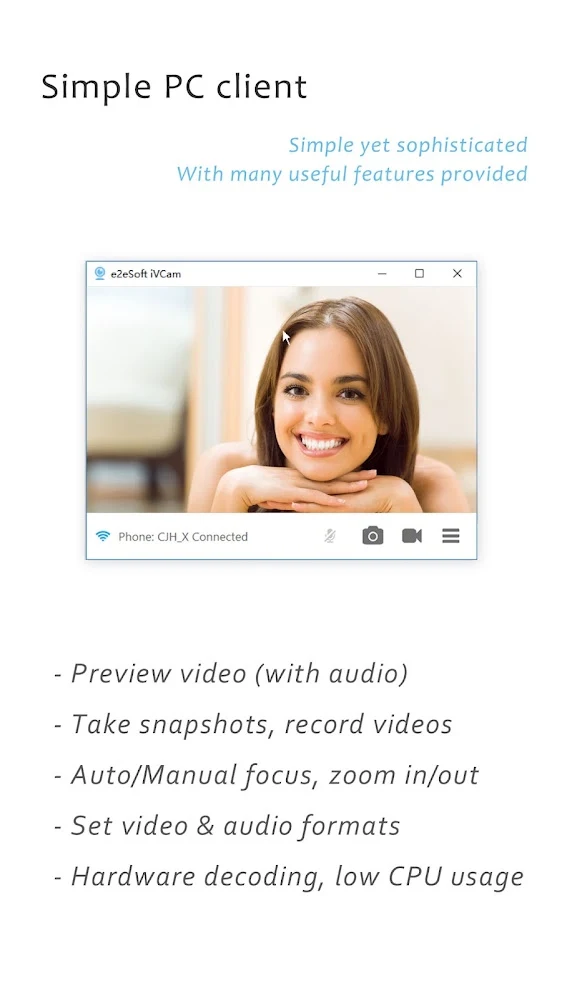
The phone connects to the iVCam client on Windows. After the picture appears in the client, select iVCam as the camera in your call or recording app. The preview is a good place to move the stand, adjust the light, or make sure the part of the keyboard you’re playing is visible.
Wi-Fi or a cable at the desk
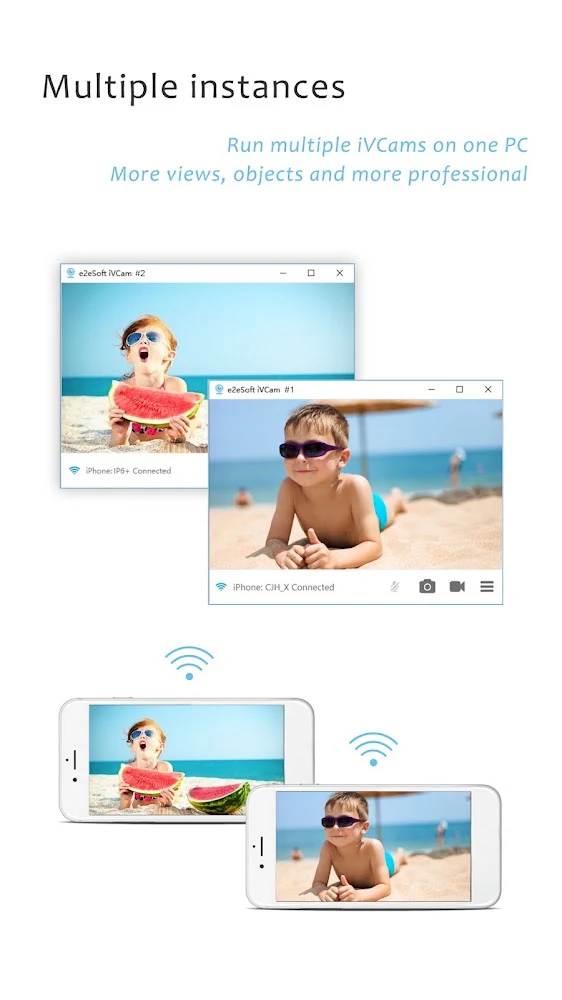
With Wi-Fi, the phone and PC need to be on the same local network. With that network shared, iVCam Webcam Mod Apk can frame the keys from across the room while the laptop stays at the desk. The live preview on Windows shows the same camera feed as you reposition the phone on its stand. If the stand stays beside the PC, USB lets you send the picture over a cable when the local wireless network is busy.
On a compatible Pixel with Google’s built-in webcam mode, a data-capable USB cable can also turn the phone into a standard USB camera. That route makes sense when you want a wired picture and your computer accepts USB Video Class devices. The iVCam setup adds a wireless choice and its own Windows preview and recording controls.
Framing with the front or rear camera
The front camera is convenient when you’re standing away from the monitor and need to see your own framing. For a view of both hands on the keys, try the rear camera and use the computer’s preview to check focus. The app supports switching cameras while connected, with the lens choices depending on the phone. A landscape frame gives both hands room to move across the keys, while portrait framing can work for a tall subject.
In the Windows client, video size and frame rate can be adjusted to suit the connection. A larger frame can make finger position easier to see. If the preview starts to stutter on Wi-Fi, try a smaller size before adjusting where the phone sits. For a recording that uses the phone’s microphone, select the iVCam microphone in the receiving app as a separate input. You can leave that input on a headset instead if it is already closer to the person speaking.



I got the same error as mentioned by Jayash Patel. The audio is connected but the video is not.
The APK is working awesome but ivcam is not connecting to my computer
It says connected but in computer it still remains waiting for connection but in phone it has started usually …pls help..