
Android app icons rarely agree with one another. One arrives inside a bright circle, the next uses a dark square, and another has no background at all. Caelus – Icon Pack APK Patched replaces that mixed appearance with colorful linear icons that follow one shared drawing style. Apps are still easy to spot, but the home screen no longer looks as though every shortcut came from a different phone.
Caelus does not squeeze everything into a fixed frame. Instead, it redraws familiar symbols with thin lines and small color transitions around their edges. There is less visual weight than with filled icon packs, which makes a noticeable difference when several rows of apps are visible at once.
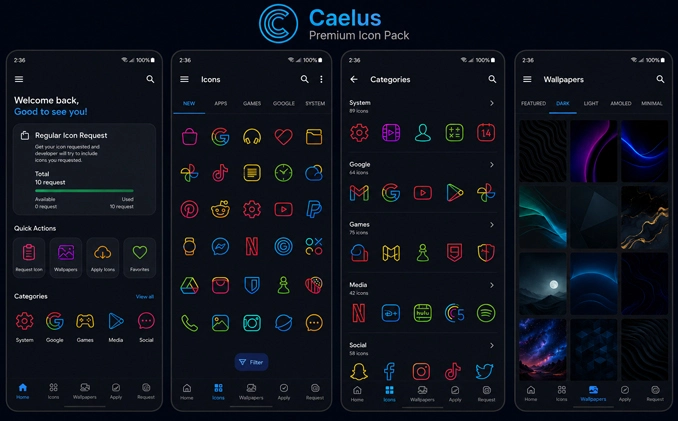
Thin Lines Change the Whole Screen
The open design leaves parts of the wallpaper visible inside each icon. That simple detail keeps the screen from becoming a grid of heavy badges. Phone, camera, browser, messaging, and social apps retain their individual shapes, while the matching line thickness ties them together.
Gradients bring color into the artwork without filling every available space. Some icons move between blue and purple, while others use warmer shades or a brighter contrast. The palette is varied, yet the drawing method remains consistent.
Caelus contains more than 4,000 icons, covering many common Android apps along with system tools, folders, and general-purpose shortcuts. Popular apps often have alternate designs too. These are useful when the automatically selected icon clashes with a wallpaper or when two nearby shortcuts use colors that look too similar.
Not every installed app will have its own Caelus design. New releases, local services, banking apps, and less common utilities are the most likely exceptions. Unthemed icon masking can soften the difference, although it cannot fully imitate the hand-drawn outline style. A similar alternate icon may look better until the missing design is added.
Wallpapers, Widgets, and a Less Crowded Layout
Dark wallpaper brings out the strongest side of Caelus. Black, charcoal, navy, and muted abstract backgrounds give the colored lines enough contrast without competing for attention. The icons also work on pale backgrounds, but detailed photographs can make their thinner sections difficult to see.
Matching wallpapers are included in the app, so there is no need to search for a suitable background before trying the pack. They are restrained enough to sit behind the icons rather than becoming the main attraction.
A Caelus setup does not need much else. A simple clock, one useful widget, and some empty space usually fit the style better than a screen packed from edge to edge. Transparent folders can help as well, particularly when the dock already contains several colorful icons.
The pack also provides six KWGT widgets. Applying those designs requires both KWGT and KWGT Pro; they are not necessary for using the icons themselves. Users who already customize widgets can match their clock or information panel with the same visual direction. The rest can ignore that part of the package and apply only the icons and wallpapers.
The Launcher Still Does the Applying
Installing Caelus does not immediately replace Android’s existing app icons. It is an icon pack, not a home-screen launcher. The new artwork must be selected through a launcher that supports external icon packs.
Nova Launcher, Lawnchair, Niagara Launcher, Smart Launcher, Action Launcher, and Apex Launcher are among the compatible choices. The setting is usually found under appearance, theme, or icon options. Once Caelus is selected, recognized apps should receive their matching designs automatically.
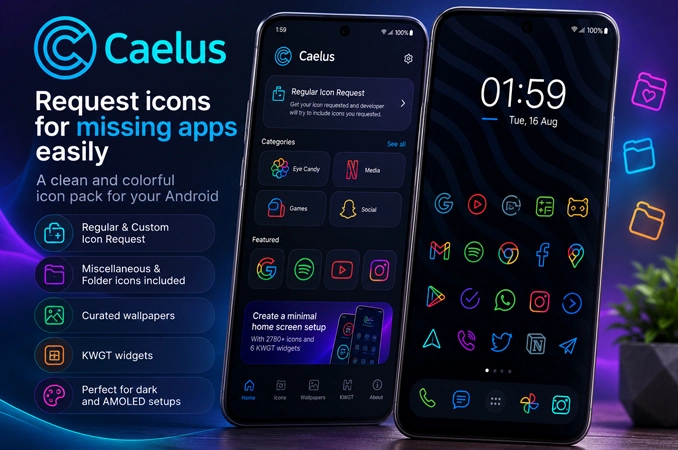
Individual shortcuts can be changed separately. Pressing and holding an icon normally opens an edit option, depending on the launcher. From there, another Caelus design can be chosen for that app. Folder icons and miscellaneous symbols generally need to be applied this way rather than appearing automatically.
Some built-in phone launchers follow a different route. Samsung One UI can apply third-party icon packs with the Theme Park app, while selected OnePlus, Oppo, and Nothing phones include their own customization controls. Other default launchers may not accept Caelus at all. In that situation, installing the APK succeeds, but nothing changes on the home screen.
Dynamic calendar icons are supported when the launcher can update them. Caelus also includes an icon-request tool for apps that have not yet received a matching design. The patched APK still relies on launcher support, so choosing the correct launcher remains an important part of getting the full icon set onto the screen.


Leave a Reply