
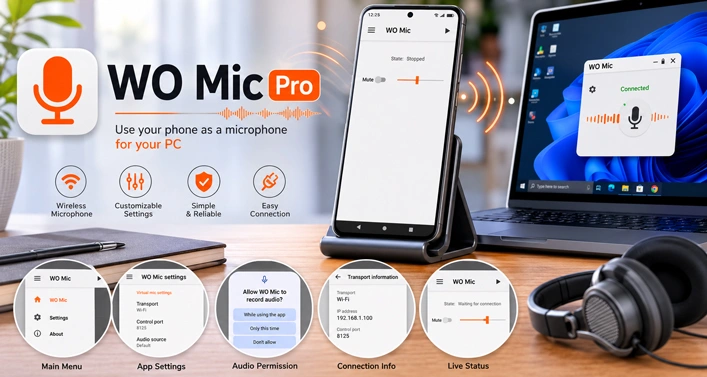
When a laptop microphone sounds distant or a desktop has no microphone connected—an Android phone can take over the audio input. WO Mic Pro Mod APK sends live voice from the phone to a Windows computer, where it can be used for Discord calls, game chat, speech recognition, online meetings, or recording. The audio reaches the PC while you are speaking, so there is no separate recording to transfer afterward.
From Android Microphone to Windows Input
WO Mic relies on three parts working together. The Android app captures sound, the desktop client receives it, and a virtual driver introduces that signal to Windows as a microphone. That last part matters. Installing the APK by itself will not create a new recording device on the computer.
The Pro Mod package handles the Android side of the connection, while the official WO Mic Client and driver are installed separately on Windows. After the phone and client are linked, “WO Mic Device” should appear among the available audio inputs. It can then be selected inside a voice-chat program, game, recorder, or any other software that accepts a microphone. Setting it as the default Windows recording device may be necessary when a program does not provide its own input menu.
Connection Choices for Different Setups
USB needs more preparation than the wireless options. USB debugging must be enabled on Android, and Windows may require the correct driver for the phone. Once the device is recognized, this connection usually has lower delay and fewer interruptions. That consistency can make a noticeable difference during a long conversation or gaming session.
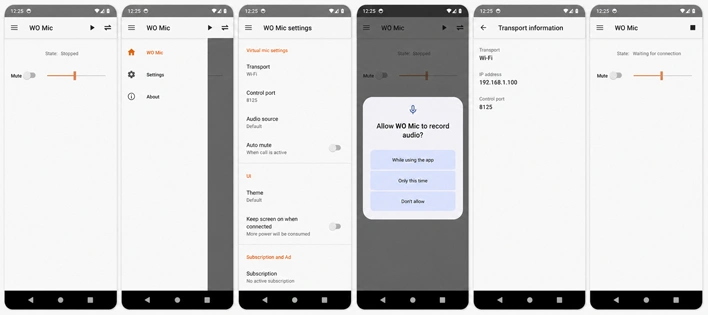
Wi-Fi gives the phone more freedom around a desk or room. Both devices must use the same local network, and the IP address shown in the Android app is entered in WO Mic Client. A connection that appears briefly and then fails may be blocked by the Windows firewall or affected by network power-saving settings.
Bluetooth avoids the need to enter an IP address. Pair the phone with the computer, select Bluetooth at both ends, and choose the phone from the client. It is convenient for casual use, although nearby wireless activity can sometimes cause delays or broken audio. Moving to USB is the practical next step when the voice begins to sound robotic.
Microphone Source and Voice Control
Mute and volume are controlled from the phone while audio is streaming. WO Mic also provides several microphone-source modes, though the available results depend on the hardware and Android software used by each manufacturer. The default option uses the phone’s built-in mic. Other modes may work better with a wired headset, reduce echo, capture speech from farther away, or use the rear microphone.
The app transmits a 48 kHz, 16-bit mono signal. This voice-focused format is suitable for calls, speech recognition, game communication, and ordinary recordings. Actual clarity still depends on the microphone fitted to the phone, its position, and the amount of noise in the room.
Broken or uneven speech does not always mean the microphone is faulty. Keeping WO Mic visible in the foreground gives Android a better chance to maintain the stream, while closing demanding apps can free resources for audio processing. The final check belongs inside the program receiving the sound: its selected input must be WO Mic Device, or Windows may continue listening to the computer’s original microphone.

Leave a Reply