
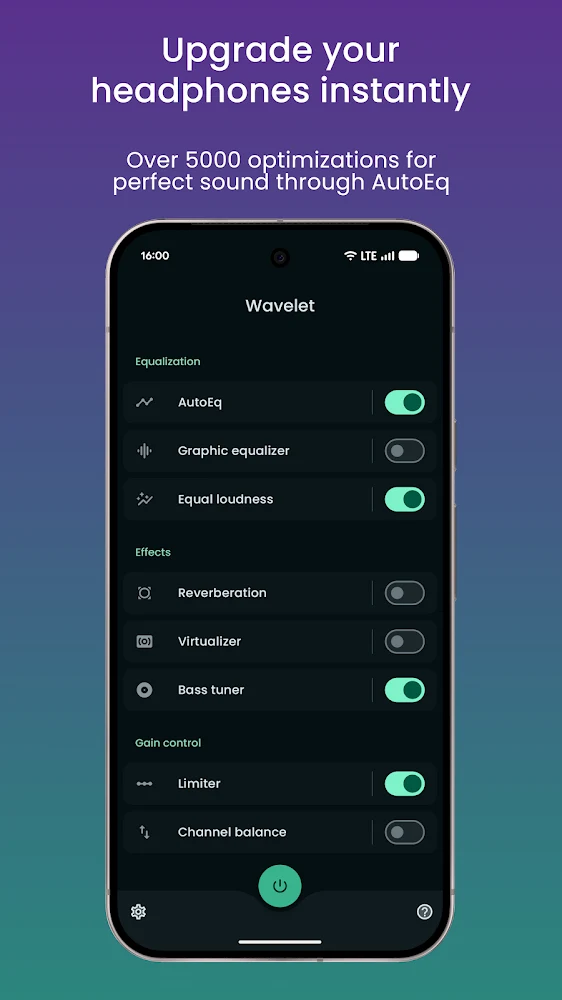
You swap earbuds for a pair of over-ear headphones, and a bass line that sounded balanced now covers part of the vocal. Wavelet: headphone equalizer Mod Apk applies equalizer settings to the active Android audio output. The app can keep settings for different connected devices, so an adjustment made for one pair can stay with that pair.
Active playback
Connect the headphones, start a track, and check which output Wavelet shows. The app can identify supported wired, Bluetooth and USB connections. The controls on its screen depend on the active audio session and route. When a player does not create the expected session, the app offers Legacy mode as an alternative. Its availability and behavior depend on the phone’s audio implementation.
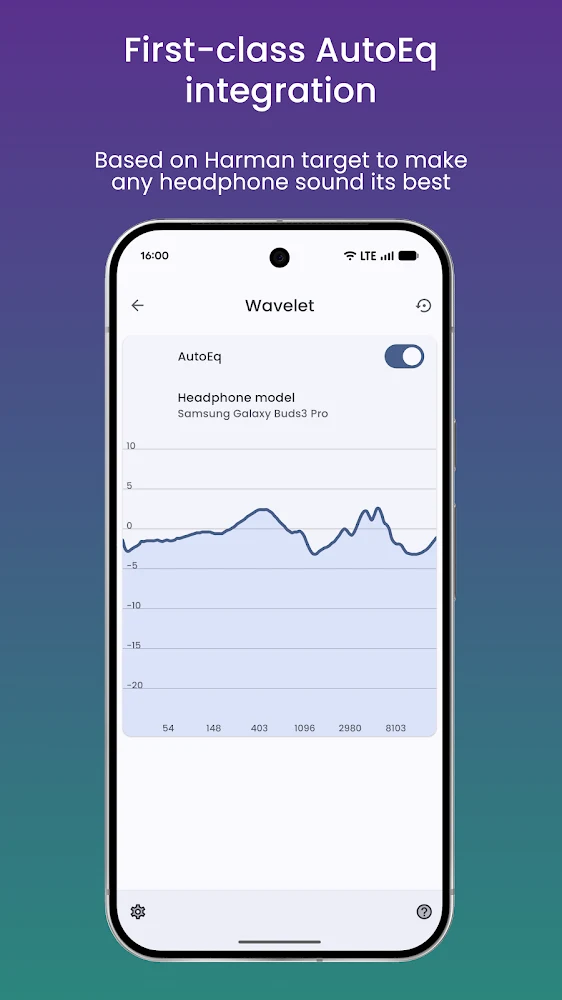
AutoEq by model
AutoEq uses measurements for specific headphones. Match the full model name when you select a curve, since similar-looking headphones can have different responses. Wavelet can restore the settings for a recognized device when it reconnects. You can check the active output in the notification if you are switching between a headset and a USB audio adapter. The curve changes the balance across frequencies, and you can listen with it switched off to hear what changed.
Bands and balance
If your headphones lack an AutoEq profile, the nine-band graphic equalizer lets you adjust one frequency region by hand. For the bass line in the opening track, try lowering a bass band slightly and listening to the same vocal passage. Channel balance is a separate control for the left and right output levels.
A first listening check
Before choosing an AutoEq curve, connect the headphones you actually want to adjust. Check their exact model against the profile shown in Wavelet and check the audio output in the notification. If the phone is still playing through another device, select the intended headphones first so your adjustments apply to that route.

Leave a Reply