
On the first launch, TomTom GO Expert asks for your location and offers maps for the surrounding area. Finish saving those maps over Wi-Fi if you plan to drive where mobile service may drop. The app uses maps already stored on the phone to provide directions within those regions.
Once the map is ready, enter a street address or look up a place through Search. Review the destination and the route in TomTom GO Expert Mod Apk while you are still parked. On the road, the guidance view focuses on the next turn and how far away it is.
Map coverage, lanes and traffic
Three parts of the app earn their keep at different moments of a trip. A road can be covered by an offline map and still have a traffic delay that only appears when the app connects.
- Offline maps cover the regions you save in advance. If you’re crossing a border or driving through several parts of a large country, check the connecting areas as well as the place you’re trying to reach. TomTom also lists separate ferry maps for some crossings.
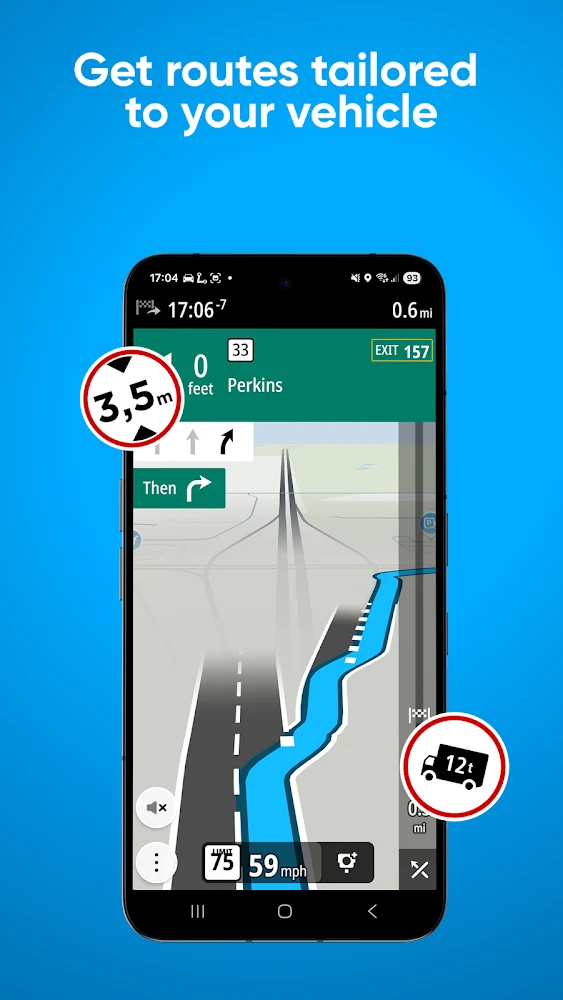
- Lane guidance helps at supported junctions and exits. Instead of guessing from the route line alone, you can check the on-screen lane cue before the road splits. It is particularly useful when two exits are close together.
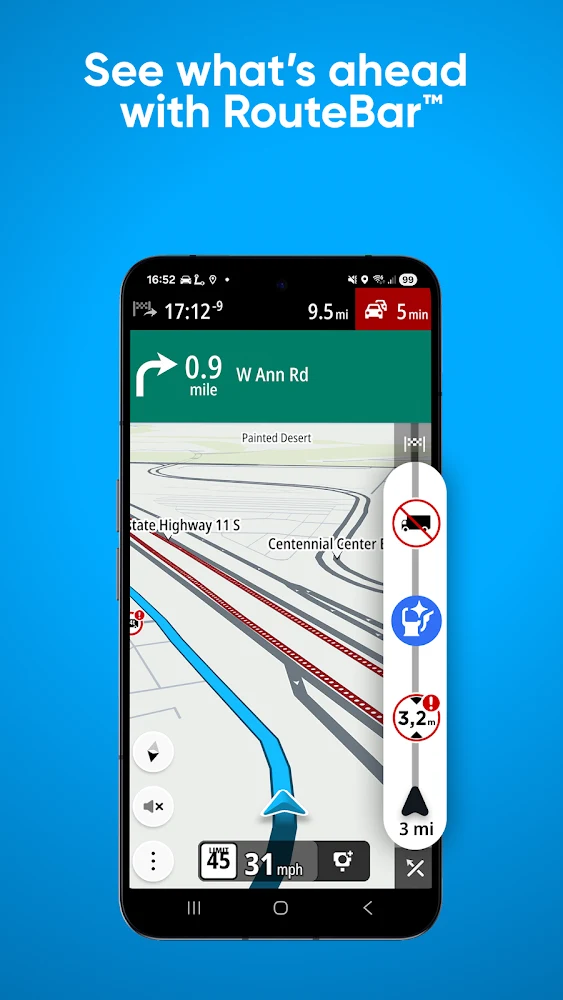
- Live traffic brings delays and incidents into the route bar when a supported service has a data connection. Roadworks ahead can change the time shown for the trip, even if the route still follows the same roads.
Trip details at a glance
After you’ve planned a drive, the route bar shows information about what lies ahead on that route. The arrival display gives an estimated time, while the turn panel tells you what to do next. Together they answer two different questions when you’re approaching an unfamiliar interchange. A passenger can use the map view to get a sense of the route beyond that next instruction.
TomTom also supports Android Auto on compatible setups. The car display can show the guidance, but its menu leaves out deeper settings and limits map interaction while you drive. Open the maps or adjust your route preferences on the phone before you connect the car display.
For a trip across two regions, open Settings, then Map & Display, then Downloaded Maps on the phone before you leave Wi-Fi. Check the regions between your home and the destination as well as the destination itself. If Search cannot find an address outside the first map, TomTom recommends checking that the map for the other region is installed.



Great app!