
Picture a short video of a drummer lifting a stick and striking a cymbal. The lift can pass quickly; the instant of contact is the part worth slowing down. Time Cut Pro APK lets you shape the pace around that moment instead of dragging the whole recording to a crawl. The Android Mod APK is listed as All Pro, with the premium editing controls included.
Time Cut stays close to one main job: retiming video. There is no need to build a large multitrack project just to stretch half a second of movement. Import the footage, work on its pace, and decide later whether it needs music, color, or any extra effect. Those additions cannot rescue a badly timed speed change.
Keep the Lead-In Moving
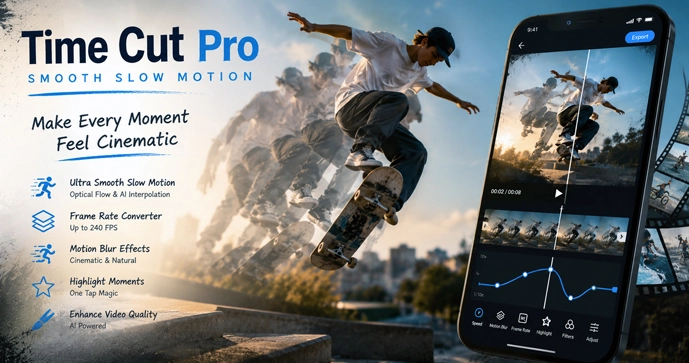
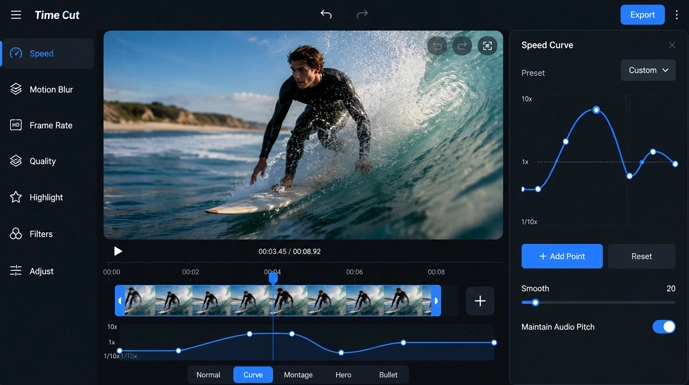
A custom speed curve is useful when different parts of the same recording need different treatment. The opening can move quickly, then begin to ease down just before the action reaches its important point. Once that moment has passed, the video can return to normal without a sudden jump in pace.
Not every edit needs a curve. The regular speed tool handles a constant change across the full clip, reaching one-tenth speed at its slowest and 10x at the other end. Freeze is meant for something more precise. Place it on the frame that deserves an extra beat, hold it briefly, and allow the movement to continue. On the cymbal shot, that could be the exact frame where the stick makes contact.
Timing is easier to judge before filters and music enter the project. Watch the unpolished result first. If the approach feels too long or the slow section arrives late, move the change closer to the action rather than covering it with another effect.
Where the Missing Movement Comes From
A phone recording only contains the frames captured by its camera. Slow it heavily and the spaces between those frames become visible. The subject may appear to hop forward instead of moving through the scene.
Time Cut tries to fill those spaces. Optical Flow follows the direction of movement from one frame to the next, while the RIFE model produces its own estimate of what should appear between them. The added images can make ordinary footage look far less broken at a lower speed. They are still estimates, though. The camera never recorded those moments.
This becomes noticeable when one object crosses another. A hand moving in front of a face may leave a bent outline, and fast-moving text can briefly double. Fine details such as hair or wheel spokes are also difficult to rebuild. A short preview of the busiest part will expose these problems before the phone spends time rendering the full video.
The frame-rate converter provides output choices such as 60, 120, and 240 fps. High-frame-rate footage may also be brought down to 24 or 30 fps when it needs to fit another video project. Converting a 30 fps source to 240 fps does not turn it into genuine high-speed camera footage. Time Cut is creating the frames that sit between the originals, not recovering hidden detail from the recording.
Leave Blur Until the Pace Feels Right
Motion blur can soften a hard-looking pan or make a quick speed ramp feel less abrupt. Time Cut includes flow-based motion blur along with lens and directional blur controls. It is easy to add too much. Faces lose definition, lettering begins to smear, and a small interpolation flaw can become a larger cloudy patch.
The quality enhancer deserves the same restraint. It can be applied to photos and video, but it cannot bring an out-of-focus subject back into true detail. Set the speed first and inspect the new frames. Blur or enhancement should be added only when the untreated export clearly benefits from it.
Long footage at a high resolution can take considerably more work to process, especially with RIFE interpolation or a 240 fps target. Trim away unused seconds and render a short sample before starting the final export. The Time Cut Mod APK requires Android 5.0 or later, although the phone’s processor and available storage will have a much greater effect on a demanding edit.
Keep the original recording untouched. If a hand, face, or moving object begins to warp at the lowest speed, pull the curve back and preview it again. A believable slow-motion moment at a milder setting will usually look better than a damaged clip forced all the way down to 0.1x.



Leave a Reply