
Stargon Browser helps you read and use web pages on Android when the site’s own layout gets in the way. A long article can move into Reader mode, and a page that buries a tool on its mobile layout can be opened in PC mode. The two views solve different problems. One is useful when you’re working through the text, and the other is useful when you still need the page’s navigation.
A clearer reading view
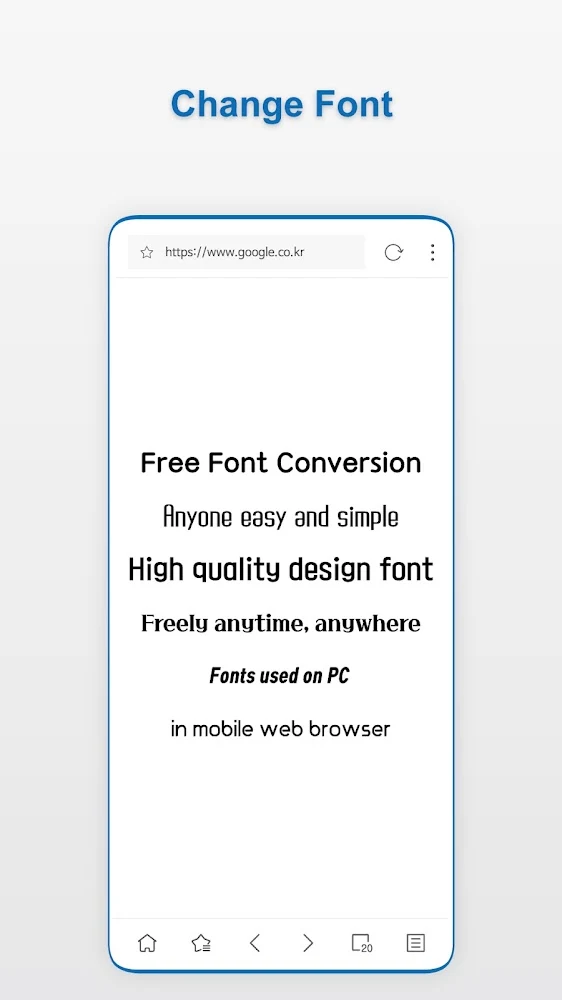
Reader mode and fonts
A phone held beside a workbench often has to display a guide you glance at between steps. Try Reader mode while reading the instructions, then use the browser’s custom fonts to find a letter shape you can pick up quickly after looking away. If the pictures explain where a part goes, keep the original page handy. A page set up for reading text can make that part of the instructions harder to reach.
Dark mode and brightness
Dark mode and brightness controls give you separate ways to change how a page looks in a dim room. The first changes the look of the browser, while the second helps set how bright its display feels. When you move somewhere with more light, you can adjust brightness without choosing a different font every time. Full screen is another option when you want more space for a document or image.
Working with the source page
Gestures, bookmarks and Capture
Gesture navigation in Stargon Browser Mod Apk can be useful when you hold a phone in one hand and use back and forward between a reference page and its search results. When you settle on a page you expect to revisit, keep a bookmark to return to the original address. Use Capture when you need a picture of the detail currently visible, such as a setting shown on a reference page. A capture records the view you have at that moment. A bookmark is the way back to the page when its contents change.
The desktop view behind a mobile menu
Try PC mode on the specific page if its mobile menu leaves out a control you need. That is more useful on a wide table or a page with several navigation columns than it is on an ordinary article. Once you’ve found the link you were looking for, return to the mobile layout for the destination if you need the text to fit the phone again.



Leave a Reply