
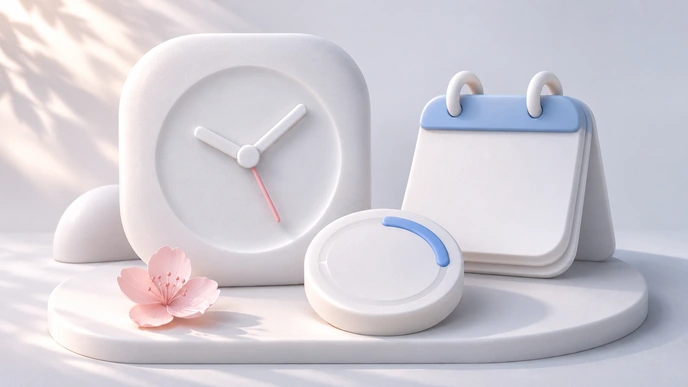
The analog clock in Shadow KWGT looks like a dial set into the surface of the home screen. A thin red hand crosses the pale face, and the day and date sit beneath it. The same treatment gives smaller widgets their shape. The weather tile puts the temperature beneath a recessed circle, while a colored ring on the battery tile shows the charge level alongside a percentage.
Those shapes make it easy to put two different readings next to each other without making the screen look crowded. Try the square battery and weather designs together if you usually check both before leaving home. For a screen that already has several rows of shortcuts, the narrow date and time bar puts the weekday on one side and the time on the other, leaving room underneath for apps.
Load Shadow presets in KWGT Pro
Install Shadow alongside KWGT Pro and use a launcher that supports KWGT widgets, such as Nova. Long-press an empty part of the home screen, open the widget picker and add a KWGT widget. Tap the empty widget, choose Shadow from the installed packs and select the design you want to use. Save it in the editor and return to the home screen to check its size against the surrounding icons.
Set aside enough space for the preset you have chosen. A calendar row with circular date markers needs width, while the analog clock needs space above and below the dial for the shadow and date. If the widget has enough room but the design looks too small, adjust Scale in the KWGT editor. If the date or an edge is cut off, resize the widget on the home screen to give the design a larger slot.
The music panel is worth placing where you can reach it with your thumb. It uses a square for album art and a row of three round playback buttons, with the track title above the controls. A slot just above the dock leaves room to read the title and tap the skip button without squeezing the panel into the space meant for a battery tile.



Leave a Reply