
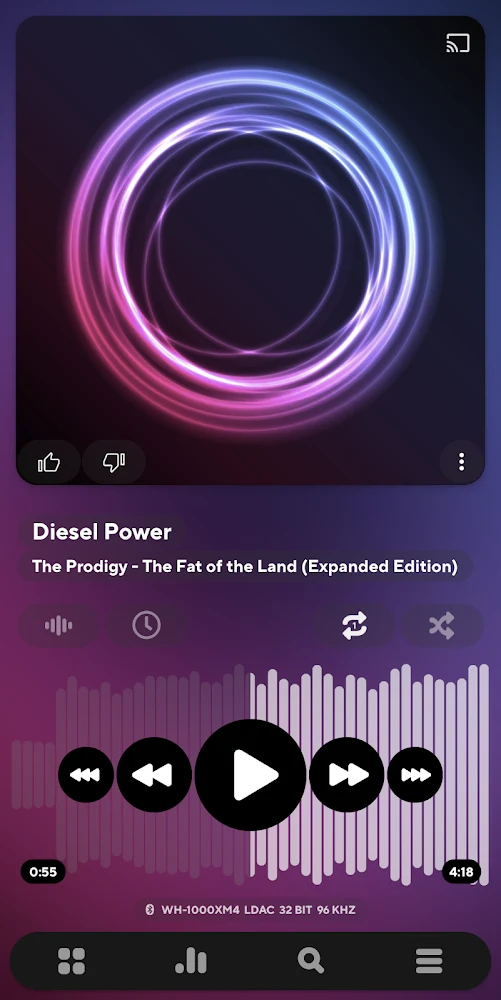
Poweramp builds a music library from the albums and mixes already on your Android device. Point it at the folders where you keep those recordings and browse by artist, album or folder. If your music is spread across an internal Music folder and an SD card, give Poweramp access to the locations you want it to scan. Selecting those folders directly helps keep ringtones and other audio from turning up among your records.
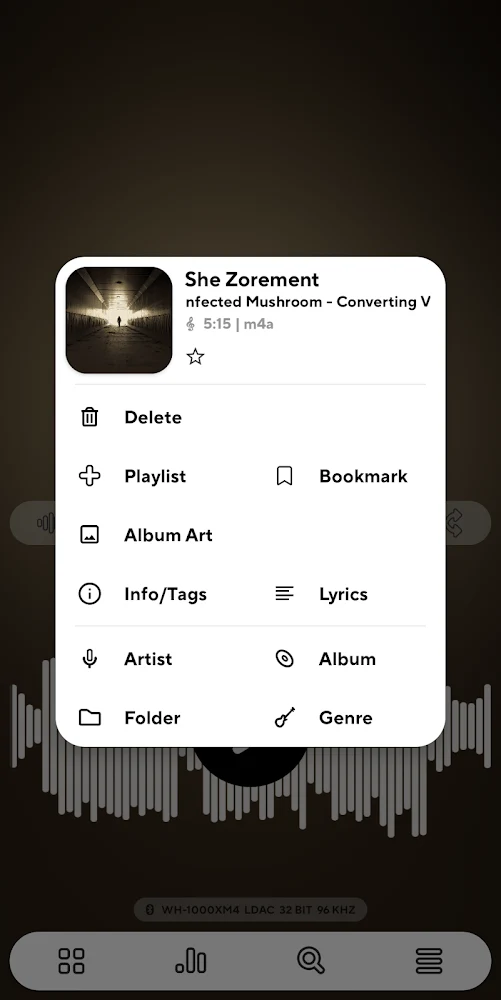
A misplaced song can interrupt the flow of a live album. The Albums view groups tracks using information stored with the recordings. If you already know where the performance is stored, the Folders view is a faster route to it in Poweramp Music Player Mod Apk. If one song appears under the wrong album name, the built-in tag editor can correct it for supported formats. It can also change the track number if the songs appear out of sequence. If the album has no cover, the player can look one up or use artwork stored in the music folder. Browse the album again to check its labels, cover and track order before moving on to the rest of the collection.
Play the album in sequence and listen to a transition where the audience can still be heard between songs. Gapless playback keeps neighboring tracks continuous when the recording is split at that point. Crossfade gives a different transition by overlapping the end of one song with the start of the next. That can work for a playlist of separate recordings. On that live album, the crowd or the trailing note can be a good cue for choosing a setting that preserves the original transition.
Perhaps the next thing you play is a mix of songs from different albums. If one track is much louder than the last, ReplayGain can use loudness information in tagged music to reduce jumps between songs. Track Gain suits a mixed playlist because it can adjust songs individually. Album Gain applies a shared adjustment to the tracks on an album, which preserves differences such as a quiet opening track followed by a louder one.
From the speaker to headphones
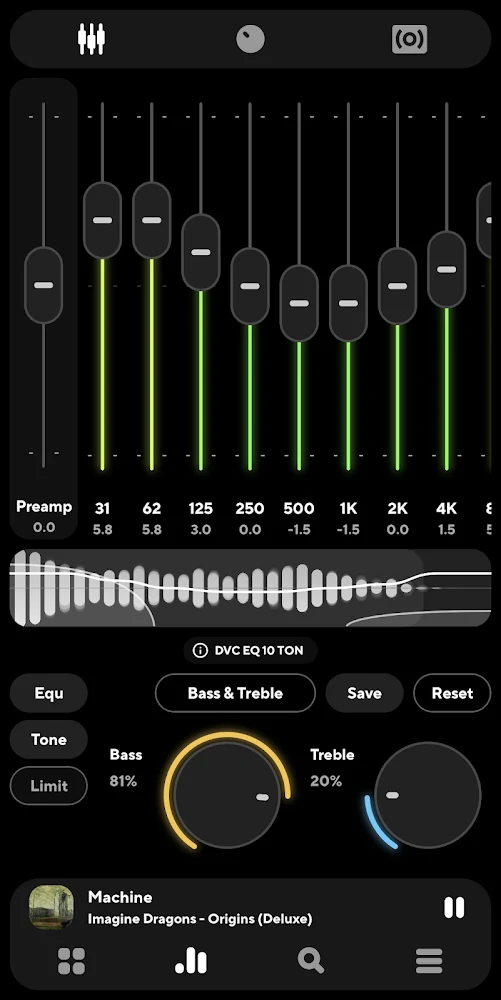
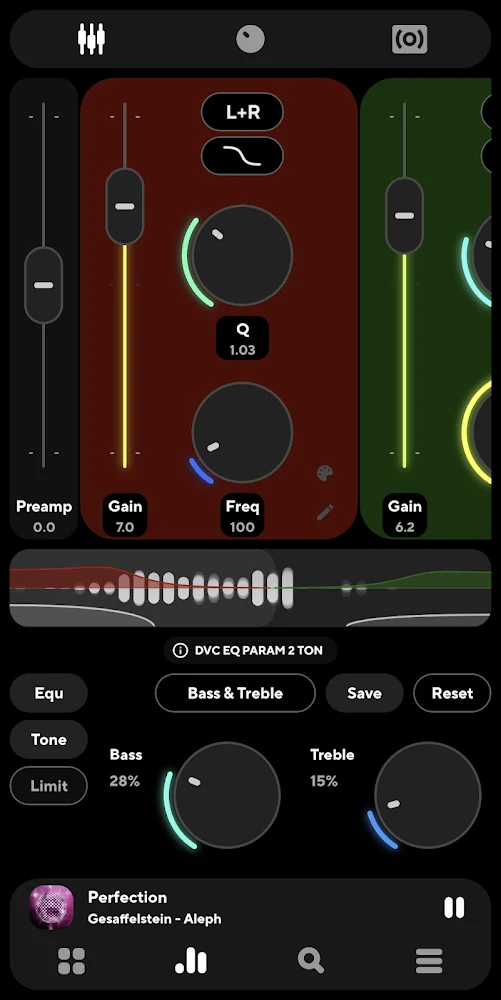
Now switch from the phone speaker to headphones. A bass adjustment that helped the speaker may sound heavy on the headphones. The graphical equalizer has sliders for fixed frequency ranges, while the parametric mode lets you set the center frequency and width of an adjustment. A broad adjustment changes a larger part of the sound. A narrow one is useful when a particular note or band draws more attention than it should.
Poweramp can remember different presets for outputs such as the speaker, wired headphones and Bluetooth. Compatible headphones can also use a matching AutoEq preset as a starting point. If you connect a USB DAC for high-resolution playback, the output options let you see what the combination of phone and hardware supports. The available settings depend on that setup, so choose a rate the output can handle before experimenting with other audio processing.
For a first setup, connect the Bluetooth or USB headphones you actually use. Poweramp can suggest an AutoEq profile when it recognizes a matching model. Assign the profile to that output and keep the phone speaker on a separate preset. You can then switch between the two without carrying the headphone curve over to the speaker.



This is not full version, this trial version. Please new update
it need ROOT | Modded Google Play, Lucky Patcher or Jasi Patcher
Build 841 is not full version, still trial?! Please fix that issue
Guys can you make it for “arm 64 bit play version”?
Because “uni” doesnt work on my device arm sd660 please…
Send me through email ([email protected])
Equalizer, tone, reverb etc. doesn’t work..