
A trip can include a town where you have good mobile service and a stretch of road where you expect to lose it. Magic Earth Navigation & Maps lets you prepare a route on Android before leaving. It can work with maps saved on the phone and includes different route modes for driving, cycling and walking. The practical choice is which information to prepare on Wi-Fi and which services will still need a connection.
Map coverage before leaving home
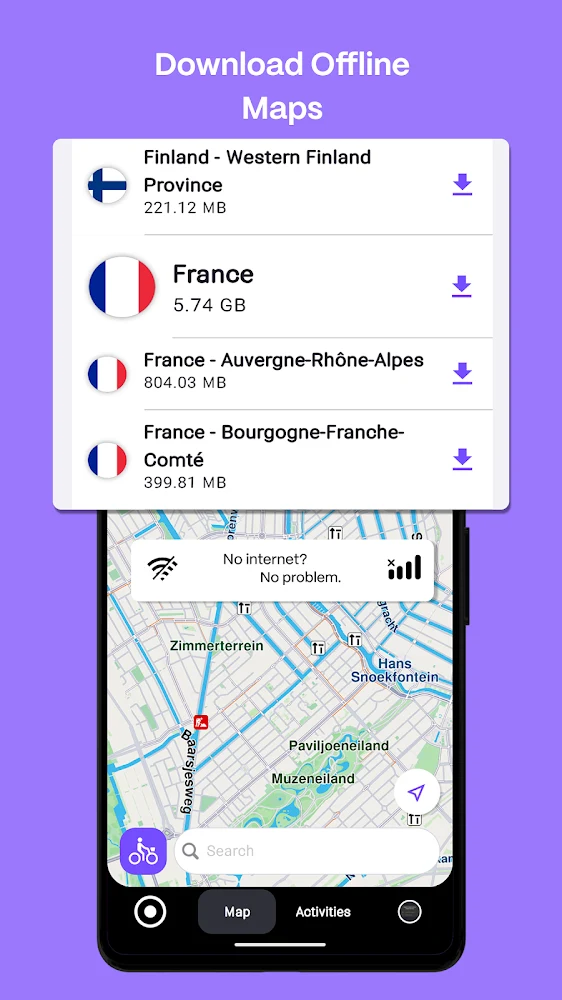
Offline maps for the route
The app’s offline maps use OpenStreetMap data. In the official product, downloading and updating an offline region requires Premium. Choose the regions the planned trip passes through while you are still connected. If a route goes across a regional boundary to reach a turnoff, check the far side of that boundary too. A map for the starting area alone may end before you reach the next stop.
The Offline Maps screen also has an update check. The developer documents an expiry error when old map data can no longer be used to calculate a route. It is worth looking for the warning while you still have time and a connection, especially when reusing a map saved for an earlier trip. The size and location of a map on the phone are separate from whether its road data is still current.
Online services and a separate mode for each leg
The mode you select changes which routes are relevant. A car route to a station has different requirements from a walking route from that station to a nearby address. Magic Earth treats those as different modes. Public transport routing requires internet access, so a saved road map does not provide a timetable or journey plan for a train. Review the information for each part while parked or before setting out.
A route that includes the planned stops
Checking the order in the route overview
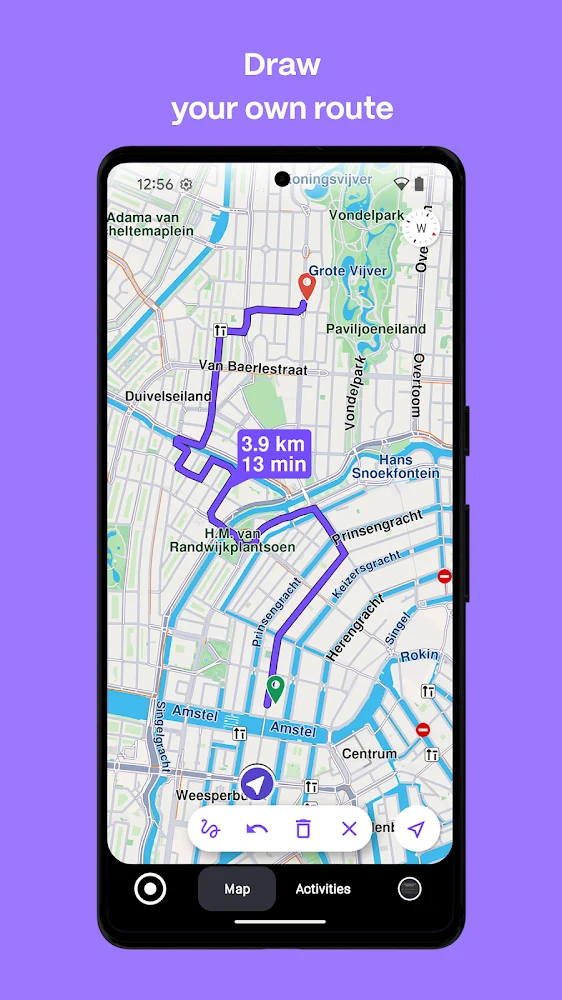
A fuel stop or a stop to pick up a passenger can be part of the route rather than a separate destination. In Magic Earth Navigation & Maps Mod Apk, the route summary includes a plus button for adding another place. Search for the stop or choose it on the map, then use the handles in Android’s waypoint list if you need to change its order. That order matters if two stops lie on different sides of the road you meant to follow.
Check the route overview when it has all the stops. Where Magic Earth shows alternatives, the map helps you see if one goes around a town while the other goes through it. If you have set a preference to avoid toll roads or ferries, check the suggested route before you rely on that preference. Plan the route and make any changes before driving.
Keeping a useful plan in History
The app can save a planned route to History when you start it or close the route summary. The preserved order of the stops is the useful detail. If you are making the same deliveries or visiting the same places again, reopen the plan and review the route for the current trip. It helps when the destinations are the same but you want a fresh calculation before leaving.
For a route you expect to reuse, pull up History from the search bar after planning a multi-stop trip. Check that the stops appear in the order you intended before recalculating or starting navigation. That is faster than trying to remember whether you entered the out-of-town stop before the one near home.



Leave a Reply