
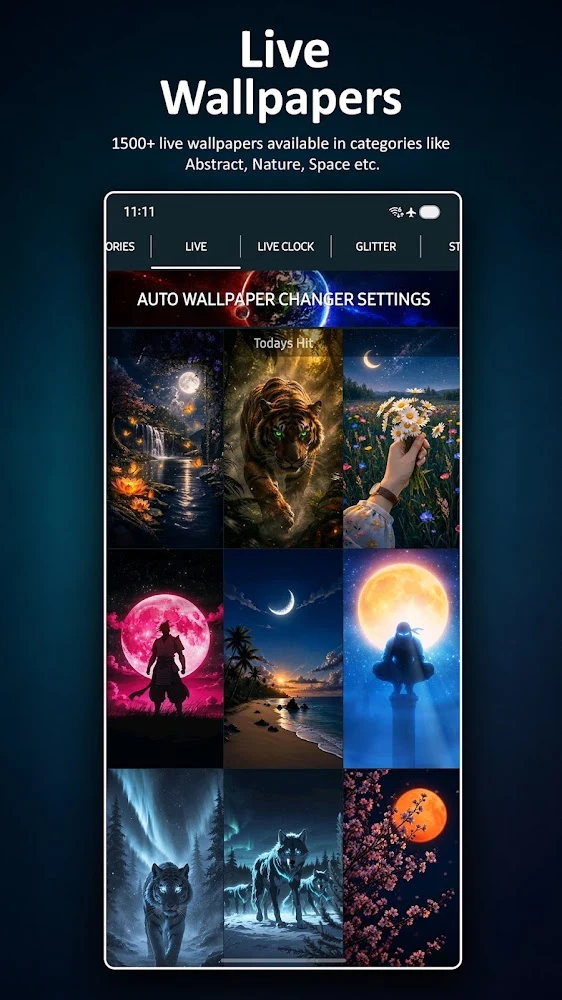
Live Wallpapers, 4K Wallpapers can set a new home screen background on a schedule. That includes animated designs, so you can keep the wallpaper moving between one scheduled change and the next. The Live Wallpapers, 4K Wallpapers Mod Apk walkthrough also covers the double-tap option for skipping straight to the next design.
Still images and their dimensions
The app lists portrait stills at 1080 × 1920 and 2160 × 3840 pixels. Those are dimensions of the source images. The part you see after setting one depends on your phone’s screen and how it fits the picture. A tall wallpaper can look different when its edges are cropped in the system preview.
If the main subject is near the border, inspect the preview before you apply the image. A photo that shows an entire tree in the wallpaper browser may show only part of it on the phone. When composing around an important detail, an image with more space around the subject gives you more room to accommodate the crop. The 2160 × 3840 option still uses a portrait shape, so check whether the drawn horizon or border is cropped when Android fits it to a taller display.
Animated backgrounds and glitter
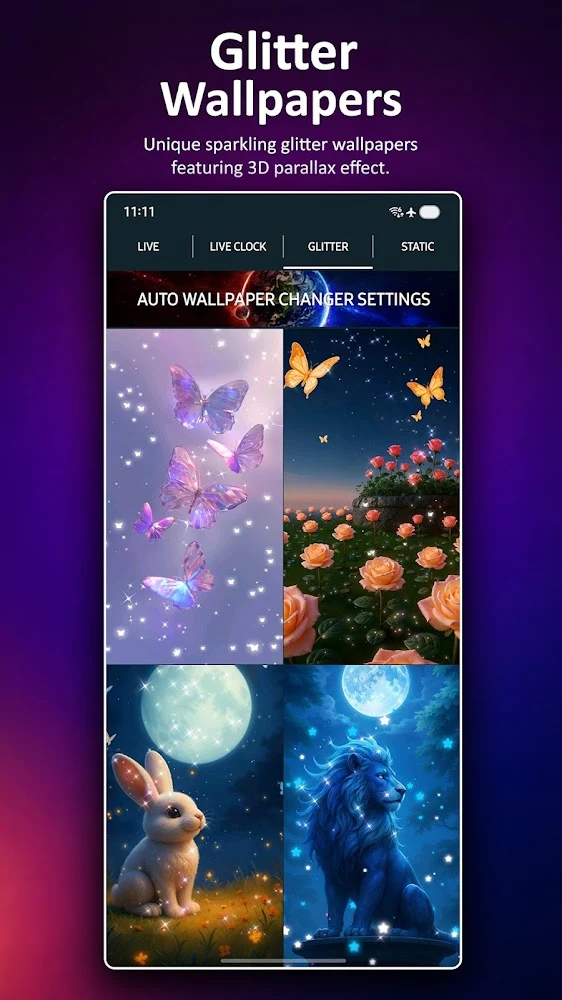
The animated collection includes glitter wallpapers with sparkling effects and parallax. A still thumbnail can show the design and colors, while the live preview shows how the motion feels over time. Keep the preview open long enough to see whether the effect stays at the edge of the picture or repeatedly moves through the center.
The developer combines glitter with a parallax effect. In preview, compare how far the pattern appears to shift across the areas you use for app shortcuts. A sparkling strip along the side leaves more of the center clear than the same effect behind several rows of home screen icons.
Clock wallpapers
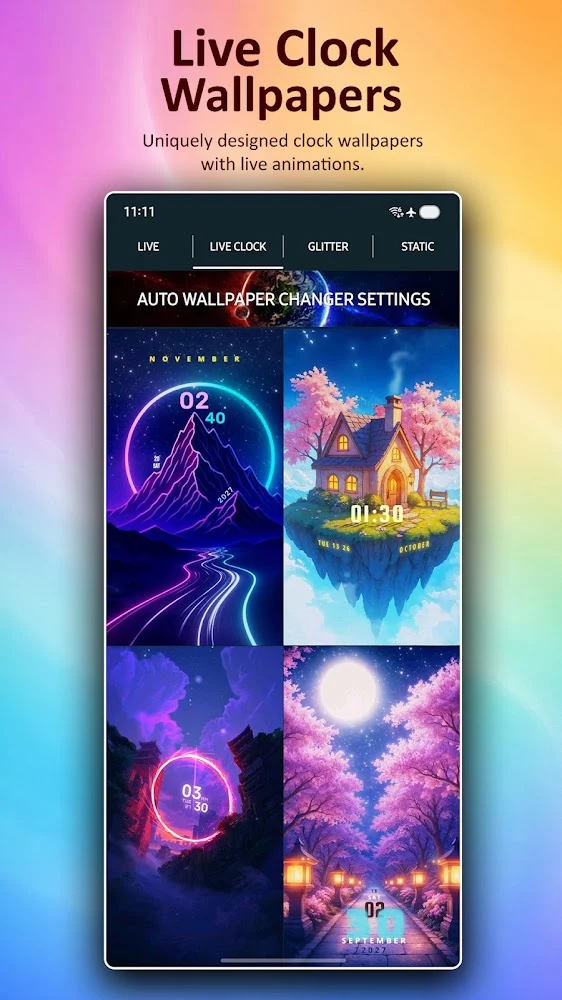
Some live backgrounds include analog or digital clocks. The clock is part of the wallpaper design, so its placement is worth checking against Android’s clock and other lock screen elements. Look at what is visible once the picture is applied. An analog face that looks clear in the catalog can be harder to read near a built-in clock or over a notification.
Changing backgrounds on a schedule
The developer documents an automatic changer for live wallpapers and describes using still backgrounds with the changer too. The time setting controls when the home screen background changes. A longer interval gives a chosen image time to settle into everyday use. A shorter interval makes more sense when seeing a different design is the purpose of the setup.
The app also lists double tapping on the home screen and changing the background when you lock the phone as change options. A tap is useful when you want to move to another image on demand. A change tied to locking can be more frequent if you put the phone away often.
A first home screen preview
Home and lock screen placement depends on the wallpaper choices your Android device offers. Set up the first change with Auto Wallpaper Changer. Choose an interval under Time Frame, then check one scheduled change on the home screen. If you later enable the lock-triggered option as well, putting the phone away can move the wallpaper along. Double Tap to Change Wallpapers provides another trigger when you are already on the home screen.


Leave a Reply