
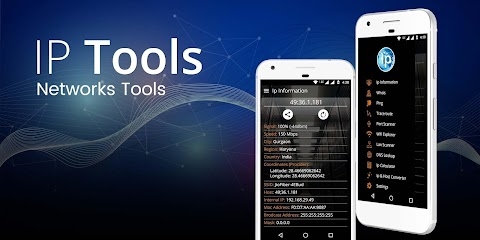
IP Tools – Network Utilities Mod Apk: Managing a network does not always require a computer. With the right Android utility, users can inspect network information, diagnose connection problems, check IP addresses, and perform basic network tests directly from a smartphone. IP Tools – Network Utilities is designed for exactly this type of task.
What Is IP Tools – Network Utilities?
IP Tools – Network Utilities is an Android networking toolkit that brings several useful network diagnostics into one application.
Instead of installing separate apps for different tasks, users can access various networking utilities from a single interface. Depending on the version, these tools can help with checking network information, examining IP addresses, testing connectivity, and troubleshooting common connection problems.
The app can be useful for:
- Home network troubleshooting
- Wi-Fi diagnostics
- IP address inspection
- Connectivity testing
- Basic network administration
- Learning networking concepts
- Checking DNS and routing information
- Investigating connection problems
Its biggest advantage is convenience: many small networking utilities are collected in one Android application.
IP Tools – Network Utilities Mod APK Features
The exact modifications depend on the specific APK release. Some third-party versions may advertise premium features or an experience with fewer restrictions.
IP Address Information
IP-related information can help users understand how their device connects to a network.
Depending on the Android version and available functions, the application may display information related to:
- Local IP address
- Public IP address
- Network interface
- Gateway
- DNS information
- Network connection details
This can be useful when troubleshooting a router or checking how a device is connected.
Ping Tool
Ping is one of the simplest ways to test network connectivity.
A ping test sends packets toward a destination and measures whether a response is received. It can help identify whether a host is reachable and provide an indication of response time.
For example, if a website or server appears unreachable, a ping test can provide additional information about the connection.
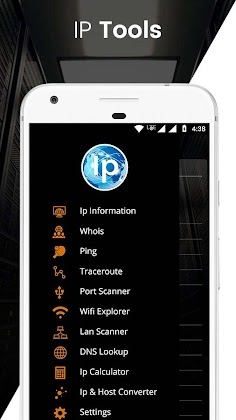
DNS Lookup
DNS translates domain names into IP addresses.
A DNS lookup tool can help users inspect how a domain name resolves and determine whether a particular DNS service is returning an address.
This can be useful when investigating:
- Website access problems
- DNS configuration
- Domain resolution
- Network troubleshooting
Traceroute
Traceroute is another useful diagnostic tool.
Rather than simply checking whether a destination responds, traceroute can help show the network path between the device and the destination.
This can provide clues about where delays or connectivity problems may occur.
Port Checking
Network utilities may also include tools for checking whether particular ports are reachable on a host.
Ports are used by network services to communicate. Checking a port can help administrators troubleshoot services that are expected to be available.
However, users should only test systems they own or have permission to examine.
Whois Information
A Whois-style lookup can provide publicly available registration or ownership information associated with certain internet domains or IP addresses, depending on the service and data available.
This can be useful for basic domain research and network administration.
Network Information
A network information section can provide an overview of the current connection.
Users may be able to inspect information such as:
- Connection type
- IP address
- Gateway
- DNS
- Network interface
- Device networking information
The available information depends on Android’s permissions and restrictions.
How to Use IP Tools – Network Utilities
The interface may vary between releases, but the basic workflow is straightforward.
Install and Open the App
Install the application from a source you trust and launch it.
Choose a Network Tool
Select the diagnostic function you need, such as Ping, DNS Lookup, Traceroute, or IP information.
Enter a Destination
For tools that require a target, enter a domain name or IP address.
For example, a connectivity test can target a domain that you are authorized to test.
Start the Test
Run the selected utility and wait for the results.
Interpret the Information
Network tools produce technical information that may initially look confusing. Understanding the basic concepts behind IP addresses, latency, DNS, and routing makes the results much easier to interpret.
Why Use Network Utilities on Android?
Having networking tools on a smartphone can be convenient when a computer is unavailable.
Imagine troubleshooting a home Wi-Fi connection while standing next to the router. Instead of opening a laptop, you can use your phone to check basic connectivity and network information.
The application can also be useful for IT students and beginners who want to experiment with basic networking concepts.
IP Address vs Public IP Address
One common source of confusion is the difference between a local IP address and a public IP address.
A device connected to a home router usually receives a private address inside the local network. The router then communicates with the wider internet using a public-facing address.

Leave a Reply